Issues Opening Forms
Getting the following message when you try to open one of these forms?
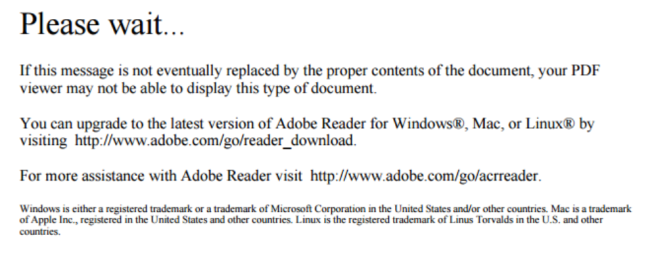
Follow these steps:
1. Verify that you have Adobe Reader X or greater or DC installed...
If you've verified that you have the latest version of Adobe Reader installed and you still cannot open the file, continue to the next step.
2. Make sure that your computer is actually using Adobe Reader to open the form...
Non-Adobe Browser Plugins
Most modern browsers have their own built-in PDF viewers. These forms will not open unless the browser is configured to use Adobe as it's PDF viewer. If you use Chrome or Firefox, you will likely have an issue opening these forms (unless you've configured them to use Adobe as the PDF viewer).
Non-Adobe PDF Viewers
There are many non-Adobe PDF viewers on the market, such as Nitro PDF Reader, Foxit Reader, Sumatra PDF, etc. It is possible that you may have one of these configured as the default program for opening PDFs. If this is the case, when you double-click a PDF that is located on your computer, it will open the file using this non-Adobe PDF Viewer to the same “Please wait…” message above.
There is a solution! Try the following:
- Right-click the PDF form link and save the PDF document to a folder on your hard drive
- Note: Chrome shows downloaded files at the bottom of the browser window. If you attempt to open it from there and your browser is not using the Adobe plugin, it will fail with the same message. You need to actually go to the folder where you saved the PDF before attempting to open it.
- Open Adobe Reader, click File / Open, and select the PDF form you saved
- Note: If you can successfully double-click the PDF file from your hard drive and it opens in Adobe, then you can skip this step.
Doing this will guarantee that the file is being opened in Adobe Reader or Acrobat and that your computer is not trying to open the PDF in another PDF product or browser plug-in.